System Settings -> Templates
When you're ready to invite guests to download the application and register for an event, it's time to send our registration emails in the form of Email/Message Templates.
How to create and send Registration Emails
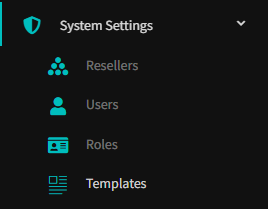
Click on System Settings on the left side menu and select Templates. Here you will see the option for Guest Registration (Email). Click + Add New to begin creating your template:
Event Organisers and Platform Users can create custom Registration Emails and Messages that are sent to Guests. The platform provides all the tools needed to create bespoke branded emails and messages.

Once you have named the email template and given your email a Subject line, select Live to activate and have the option to add to an Event Brand when Guests Register after an invitation.
Finally click Create Template to save your new template.
How to Add this Template to an Event Brand
Click on Event Configuration and select Event Brands. Click Actions > Change Theme on the respective Brand. You will find Invitation Message Template in the General section.
Here you will have the option to apply any Template that has been previously completed.

Was this article helpful?
That’s Great!
Thank you for your feedback
Sorry! We couldn't be helpful
Thank you for your feedback
Feedback sent
We appreciate your effort and will try to fix the article